

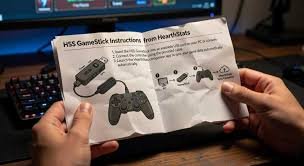
If you’ve recently purchased an HSSGameStick, you’re probably excited to jump into retro gaming, but maybe a little confused about how to set it up or use all its features. Don’t worry. This instructions manual HSSGameStick guide will walk you through everything step by step, from unboxing to advanced settings.
Whether you’re a beginner or just need a refresher, this detailed guide will help you get the most out of your device.
What Is the HSSGameStick?
The HSSGameStick is a compact plug-and-play gaming console designed to bring thousands of classic retro games directly to your TV. It usually comes preloaded with games from older consoles, allowing you to relive nostalgic gaming moments without needing cartridges or discs.
Key Features
- Plug-and-play via HDMI
- Thousands of built-in retro games
- Wireless controllers
- Expandable storage via TF (microSD) card
- Support for multiple emulators
What’s Included in the Box
Before setting up your device, make sure you have everything:
- HSSGameStick console
- HDMI extension cable
- USB power cable
- 2 wireless controllers
- USB wireless receiver
- TF (microSD) card (pre-installed with games)
- User manual (basic version)
How to Set Up HSSGameStick
Setting up your HSSGameStick is simple and takes only a few minutes.
Step-by-Step Setup Guide
1. Connect to Your TV
Plug the HSSGameStick into your TV’s HDMI port. If space is tight, use the HDMI extension cable.
2. Power the Device
Connect the USB cable to the GameStick and plug the other end into:
- A TV USB port, or
- A power adapter (recommended for stable performance)
3. Insert the TF Card
Ensure the TF card is properly inserted into the slot. This card contains all the games and system files.
4. Connect the Wireless Receiver
Insert the USB wireless receiver into the GameStick.
5. Turn On Your TV
Switch your TV input to the correct HDMI source.
6. Power On Controllers
Insert batteries into the controllers and turn them on. They should connect automatically.
First-Time Boot and Interface Overview
Once powered on, the system will boot into the main menu.
Main Menu Sections
- Game List
- Favorites
- Recently Played
- Settings
- Search Function
You can navigate using the controller’s directional pad and confirm selections with the “Start” or “A” button.
How to Play Games
Selecting a Game
- Browse or search for a game
- Highlight the game title
- Press “Start” or “A” to launch
In-Game Controls
- Directional pad: Movement
- Action buttons: Gameplay controls
- Start: Pause/Menu
- Select: Additional options
How to Save and Load Games
One of the best features of the HSSGameStick is save states.
Saving Your Progress
- Press the “Select” + “Start” buttons together
- Choose “Save State”
- Select a slot
Loading a Saved Game
- Open the same menu
- Select “Load State”
- Choose your saved slot
Controller Setup and Troubleshooting
Pairing Controllers
Controllers usually auto-connect. If not:
- Ensure the USB receiver is inserted
- Restart the console
- Replace batteries
Controller Not Working?
Try these fixes:
- Move closer to the GameStick
- Replace batteries
- Reinsert the USB receiver
Game Organization and Search
With thousands of games, finding one quickly is important.
Search Feature
- Use the on-screen keyboard
- Type the game name
- Select from results
Favorites
- Add games to favorites for quick access
- Press a designated button (varies by model)
Expanding Game Library
Want more games? You can add them.
Steps to Add Games
- Remove the TF card
- Insert it into your computer
- Add ROM files to appropriate folders
- Safely eject and reinsert into GameStick
Make sure files are compatible with supported emulators.
System Settings and Customization
You can adjust several settings to improve your experience.
Available Settings
- Language selection
- Screen resolution
- Audio output
- Controller mapping
- Emulator settings
Changing Resolution
If your display looks stretched:
- Go to Settings
- Select Display Options
- Choose the correct resolution (e.g., 720p, 1080p)
Common Issues and Fixes
No Signal on TV
- Check HDMI connection
- Switch input source
- Restart device
Games Not Loading
- TF card may be corrupted
- Reinsert or replace the card
Lag or Slow Performance
- Use a power adapter instead of TV USB
- Close background apps (if applicable)
Maintenance Tips
To keep your HSSGameStick running smoothly:
- Avoid removing TF card while powered on
- Keep device in a cool, dry place
- Regularly back up your TF card
- Use quality batteries for controllers
Advantages of HSSGameStick
- Affordable retro gaming solution
- Easy to use and install
- Large game library
- Portable and compact
- Supports multiplayer gaming
Limitations to Consider
- Game quality varies
- Some duplicate games
- Limited online features
- Build quality may differ by version
Pro Tips for Better Experience
- Use a dedicated power adapter for stability
- Organize games into folders for easier browsing
- Back up your save files regularly
- Upgrade TF card for more storage
Conclusion
This instructions manual HSSGameStick guide provides everything you need to start, troubleshoot, and enhance your gaming experience. With its simple setup and massive game library, the HSSGameStick is perfect for retro gaming lovers of all ages.
Once you get familiar with the controls and features, you’ll be able to fully enjoy thousands of classic games right from your living room.
FAQs About Instructions Manual HSSGameStick
1. What is the HSSGameStick used for?
The HSSGameStick is a plug-and-play gaming console designed to play retro games directly on your TV without additional hardware.
2. Why is my HSSGameStick not turning on?
This usually happens due to insufficient power. Use a wall adapter instead of a TV USB port for better performance.
3. Can I add new games to the HSSGameStick?
Yes, you can add compatible ROM files to the TF card using a computer.
4. How do I fix controller connection issues?
Try replacing batteries, reconnecting the USB receiver, or restarting the console.
5. Does HSSGameStick support multiplayer gaming?
Yes, most versions come with two wireless controllers, allowing multiplayer gameplay.
6. What should I do if games are lagging?
Ensure stable power supply and avoid running too many background processes if applicable.
7. Is internet required to use HSSGameStick?
No, it works offline since all games are stored locally on the TF card.
8. How do I reset the HSSGameStick?
You can reset it from the settings menu or by restarting the device.